Day 8 : Basic Git & GitHub for DevOps Engineers

🔄What is Git
Version control system for tracking file changes and facilitating collaboration.
Widely used in software development.
Records contributors and changes to file sections.
Allows reverting to earlier file versions.
Enables easy collaboration by sharing and merging changes among multiple contributors.
🌐What is Github
Web-based platform hosting version control using Git.
Subsidiary of Microsoft.
Offers distributed version control and source code management (SCM) features of Git.
Includes additional proprietary features.
Highly popular for project sharing, collaboration, and hosting open-source projects.
🆚What is Version Control? How many types of version controls we have?
Version Control Basics:
Tracks changes to files over time for version recall.
Enables reverting files, comparing changes, and tracking modifications.
Two Main Types:
Centralized Version Control System (CVCS):
Uses a central server to store all project versions.
Developers "check out" and "check in" files from/to the central server.
Examples: Subversion, Perforce.
Distributed Version Control System (DVCS):
Developers "clone" entire repositories with full version history.
Complete local copy of the repository, including branches and past versions.
Enables independent work with later merging into the main repository.
Examples: Git, Mercurial,Darcs.
🚀Why we use distributed version control over centralized version control?
DVCS Advantages over CVCS :
Better Collaboration 🤝: Every developer has a full repository copy and Easier collaboration without constant central server communication.
Improved Speed ⚡: Faster version control actions with local repository copies.
Greater Flexibility 🔄: Offline work and selective sharing of changes.
Enhanced Security 🔐: Multiple server and computer repository copies for increased resilience.
In summary, the decentralized nature of DVCS fosters superior collaboration, flexibility, and security, making it a preferred choice for many teams.
📝Task
Install Git on your computer (if it is not already installed).
sudo apt-get install git- To install the git on the system.git --version- To check the latest version of git.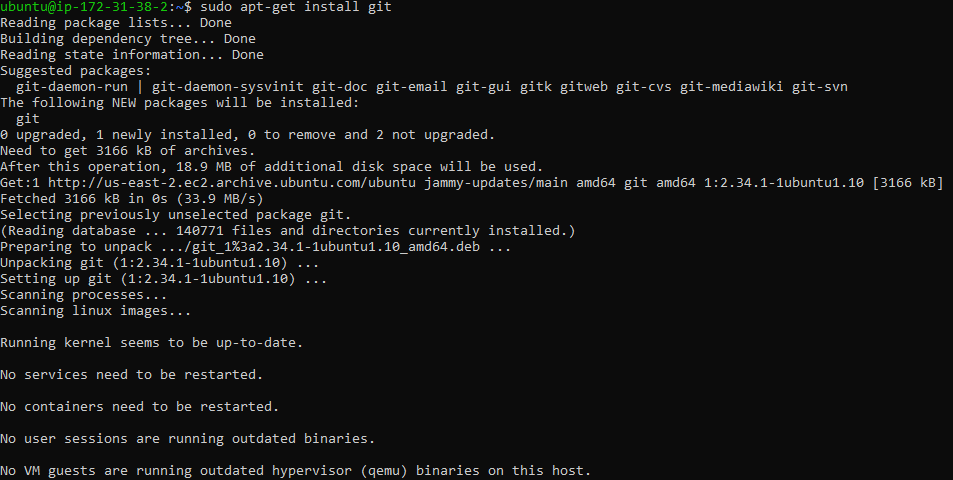
Create a free account on GitHub (if you don't already have one).
Visit GitHub: Go to the GitHub website at https://github.com/.
Sign Up: Click on the "Sign Up" button on the top right corner.
Create a GitHub Account:
Fill in the required information:
Choose a username.
Enter your email address.
Choose a strong password.
Verify Email: Verify your email address by clicking the link sent to your email from GitHub.
Choose Plan: Select the "Free" plan for individual developers.
Complete Setup: Provide optional information, such as your role, and choose your preferences.
Finish: Complete the account creation process.
Basics Github Commands
Initialize a Repository:
git init: Initializes a new Git repository.Check Repository Status:
git status: Displays the current status of the repository.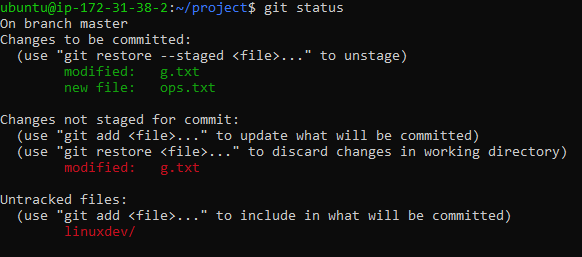
Add Files to Tracking/Staging Area:
git add filename.txt: Adds files to the tracking/staging area.Remove File from Staging Area:
git rm --cached filename.txt: Removes a file from the staging area.Commit Changes to Local Repository**:**
git commit -m "added new files": Commits changes to the local repository.
Commit Specific File:
git commit -m "done" filename.txt: Commits a specific file to the local repository.Restore Changes to Last Commit State:
git restore filename.txt: Restores changes to the last committed state.
Checkout File to Last Commit State:
git checkout filename.txt: Restores a file to its last committed state.
View Changes in Working Directory:
git diff: Views changes made in the working directory.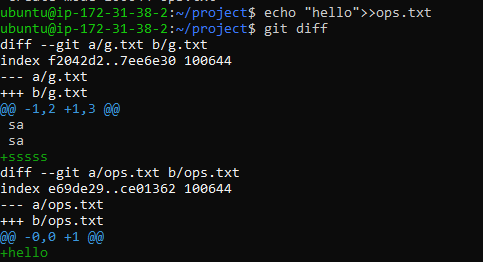
git diff filename.txt: Views changes made to a file in the working directory.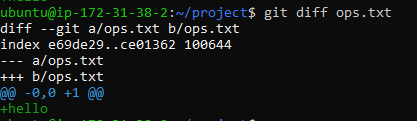
View Changes in Staging Area:
git diff --cached: Views changes in the staging area (before committing).Set Global User Configuration:
git config --globaluser.name"<your username>": Sets global user name for commits.git config --globaluser.email"<your email>": Sets global user email for commits.View Commit History:
git log: Displays all commit history.
View Compact Commit History:
git log --oneline: Displays commit history with commit hash.
Clone a Repository:
git clone <repository URL>: Clones an entire remote repository to the local machine.Clone Repository with Personal Access Token:
git clonehttps://kishanygit:<your_token>@github.com/kishanygit/linuxdev.git: Clones a repository using a Personal Access Token.
Show Commit Details:
git show 4cbe579 :Displays information about a specific commit, including the changes introduced in that commit.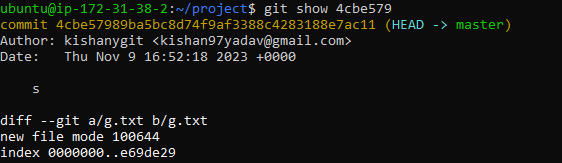
Fork a Repository:
git fork: Copies a remote repository to your account on github.
🧾Exercises
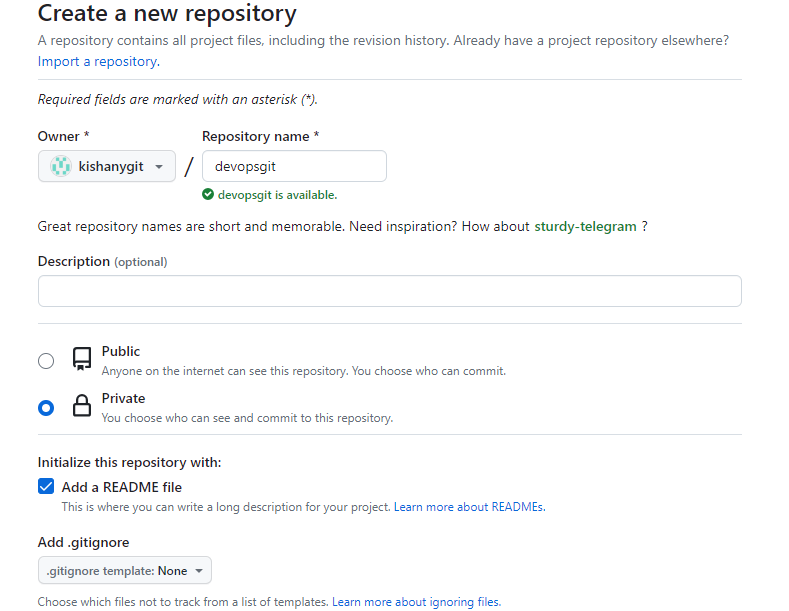
Create a new repository on GitHub and clone it to your local machine
Login to www.GitHub.com
Create a repository and enter the repository name.
Choose the repository type as public or private
Add a README file
Navigate to "Developer settings" in the left sidebar.
Click "Generate token" under "Access tokens."
Name the token, select scopes, and click "Generate token."
Copy the generated token immediately.
run this command in the terminal after adding your token id: git clone https://kishanygit:<your_token>@github.com/kishanygit/linuxdev.git
Syntax: https://username:<your_token>@github.com/username/repositoryname.git

Make some changes to a file in the repository and commit them to the repository using Git
Create a file using vi editor

git status - To check the status of your git repository
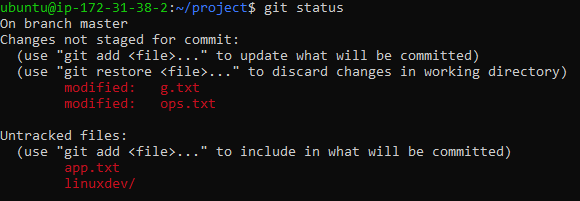
git add filename- moves changes from the working directory to the staging area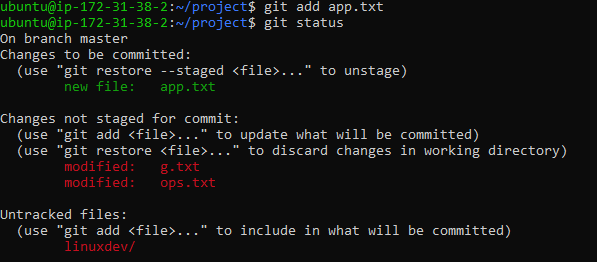
git commit -m “commit message”- Commit changes to local git repository
Push the changes back to the repository on GitHub
Link-Local Repository to GitHub:
Syntax: git remote add origin <repository_URL>

Verify Connection:
git remote -vRequest the list of all repositories that are connected to your local repository.
Push Changes to GitHub:
Syntax for setting the URL:
git remote set-url origin https://username:<new_token>@github.com/username/repository.git

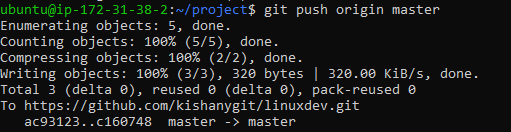
git push origin master- Push changes to the remote git repository on main/master branch.